
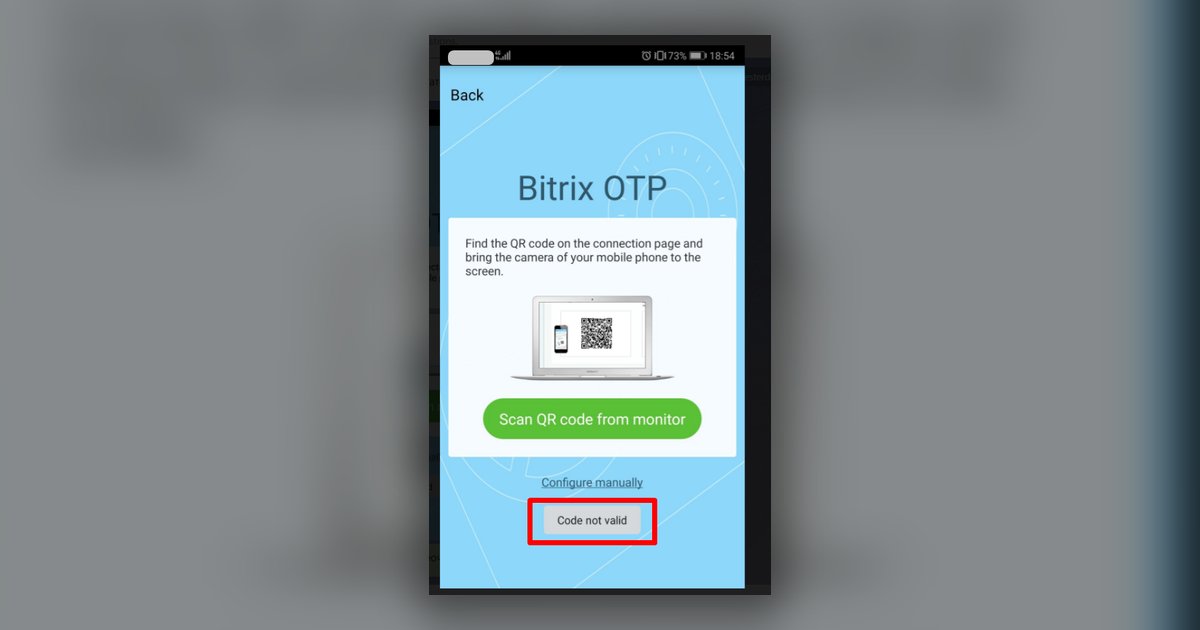
The “Code not valid” message appears when setting up Bitrix24 two-factor authentication (2FA) on a Huawei phone. It almost always means one thing: the QR code was scanned with the BitrixOTP app, not the phone’s camera. The new 2FA setup is designed to be scanned with the system camera, not a dedicated app. The camera opens the Bitrix24 mobile app on its own, and the account gets linked there. Scanning the same code with BitrixOTP makes the system reject the token. Below is the sequence that worked on my Huawei, related issues, and what to check if it happens again.
Why does Huawei show “Code not valid” when scanning the QR code?
The error happens because the old and new apps use different code-generation mechanisms. BitrixOTP simply doesn’t recognize a QR code issued under the new 2FA scheme. This isn’t a Huawei bug — it’s a protocol mismatch. For more detail, see “2FA vs OTP in Bitrix24: Difference and What’s Changing”. In practice, the fix isn’t a Huawei setting — it’s the scanning method.
Personal experience (n=1, July 2026, Huawei, EMUI): I rescanned the same QR code with BitrixOTP several times and kept getting “Code not valid”. The problem disappeared the moment I closed BitrixOTP and scanned the same code with the stock Camera app. The phone immediately offered to open the Bitrix24 app, and 2FA connected on the first try.
How do you set up 2FA on Huawei using the camera?
To set up 2FA with the camera, scan the QR code with the stock Camera app, not BitrixOTP. The process takes five steps, from opening security settings in the browser to confirming the login inside the Bitrix24 app.
- Open security settings. In your browser, go to your profile → “Security” → two-step verification. If it’s shown, you can also click “I changed my phone”. The same path is described in “Enable two-step authentication for Bitrix24 login”.
- Bring up the QR code. Wait for the code to appear on your computer screen — scan this one, not an old saved code.
- Open the Huawei camera. Launch the stock Camera app, not BitrixOTP.
- Point it at the QR code. The camera recognizes the link on its own and offers to open the Bitrix24 app. More on the scanning process itself — in “Log in to Bitrix24 with a QR code”.
- Confirm inside Bitrix24. Allow the transition and finish linking the account — that’s the final step.
A general overview of the new 2FA scheme is in “New two-factor authentication in Bitrix24”. It also lists the differences from the old version and other common setup scenarios.
Can you skip the OTP app and log in with SMS or backup codes instead?
Yes, when setting up the new 2FA, you can skip the OTP app. You can confirm logins with backup codes or SMS instead. This works technically, but it’s not recommended. Without the OTP app, you risk losing portal access if your backup codes become unavailable.
For logging in without the mobile app, see “Log in to Bitrix24 without the mobile app”. If you do decide to skip the app, keep your backup codes somewhere safe before removing it.
What other issues come up after switching to the new 2FA?
After switching to the new 2FA, two issues come up most often: a duplicate portal and a captcha error. The portal sometimes shows up twice in the app, and the captcha may reject a correct code. Both are easy to fix yourself, without contacting support.
Why does the Bitrix24 app show the portal twice?
The same portal sometimes appears in the app twice — as an old and a new entry at once. This isn’t a sync bug — it’s a temporary duplicate in the list of connected portals.
The extra card is easy to remove: in the portal list, swipe the unneeded account left and tap “Delete”. The remaining portal keeps working without needing to log in again.
Why does the captcha show an error even with the right code?
The captcha can flag a correctly entered code as wrong. Usually the cause is the app’s cache, not the captcha itself. The fix is almost always clearing the cache, not retyping the code.
Steps to take:
- clear the Bitrix24 app cache in your phone settings;
- fully sign out of the app on all portals, then sign back in starting with the one you need;
- if that doesn’t help, delete the app, reinstall it, and add only the portal you need.
What if the camera still opens the old app?
That means BitrixOTP is set as the default handler for QR codes on your phone, instead of the system camera. Check your Huawei settings to see which app is set as the default QR code handler. Temporarily remove that status from BitrixOTP. Then repeat the scan with the Camera app — it should hand off the link to Bitrix24 correctly.
Frequently Asked Questions
Do I need to delete BitrixOTP from my phone? No, deleting the app entirely isn’t necessary. You just need to avoid scanning the new 2FA QR code with BitrixOTP. Only the stock camera works for that step. You can keep the app installed. It’s still useful if colleagues on your portal still use the old login scheme.
Why doesn’t an old QR code work with the camera either? Every QR code in Bitrix24 is tied to a specific setup session and stays valid only for a limited time. If a code is expired, already scanned, or the page was closed, rescanning it won’t do anything. In that case, go back to your profile, reopen the security section, and generate a new code. The old one won’t reactivate.
Is this a Huawei-specific issue or does it affect all Android phones? The mechanism is the same on all Android devices. The error isn’t caused by the phone model, but by which app scanned the code. Huawei shows it more often because of EMUI quirks that set BitrixOTP as the default QR handler. On other brands, the fix is the same: scan with the system camera, not a third-party app.
Are there other questions about the new 2FA unrelated to the Huawei camera? The “FAQ: New two-factor authentication” page covers other common login issues with the new scheme. For example, it covers cases where a push notification doesn’t arrive. It also covers what to do if you can’t confirm a login. The same page helps if you lost access to your old device after switching phones.